Work contents can be assigned for multiple product variants in the "Assignment" area of the mix balancing. The work carried out in the "Assignment" tab essentially follows the same principles as a standard balancing.
For more, see “Assignment"
If at least one product variant is stored in the balancing, the following functions can also be used.
 "Assignment" ribbon in the case of mix/maximum balancing
Assignment options for variants In addition to the buttons that are available with a simple balancing, the following functions are added when balancing variants.
|

There are different ways to assign work contents: 1.Assign work contents initially (via drag and drop or the context menu in the "Work contents" area) 2.Move previously assigned processes (via drag and drop or the context menu function "Move to" in the tree) 3.Remove assignment (by clicking the “- Remove assignment" button in the ribbon, using the context menu or the Del key) |
When using the user selection, a dialog opens where the variants that are available for each process are listed. The user determines the assignment by setting checkboxes. 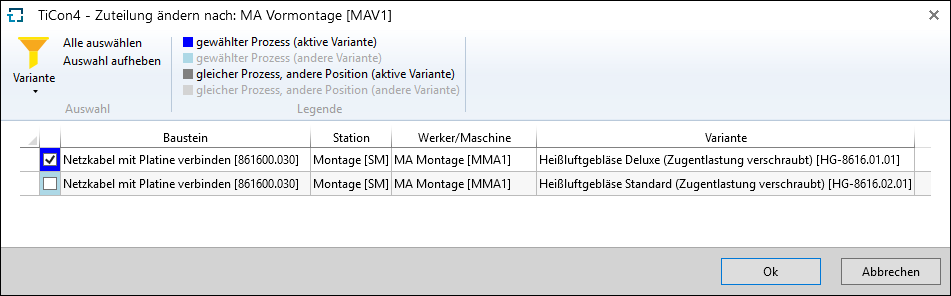 Dialog for user selection - Redistribute the element 861600.030 only for the active variant from OP Assembly to OP Pre-assembly |
Display of processes in the work contents
It is also possible to filter the display of the processes in the work contents:
|

Product variants and variant keys
If the corresponding columns are shown, you can see the product variants and variant keys assigned to the process in the tree view. 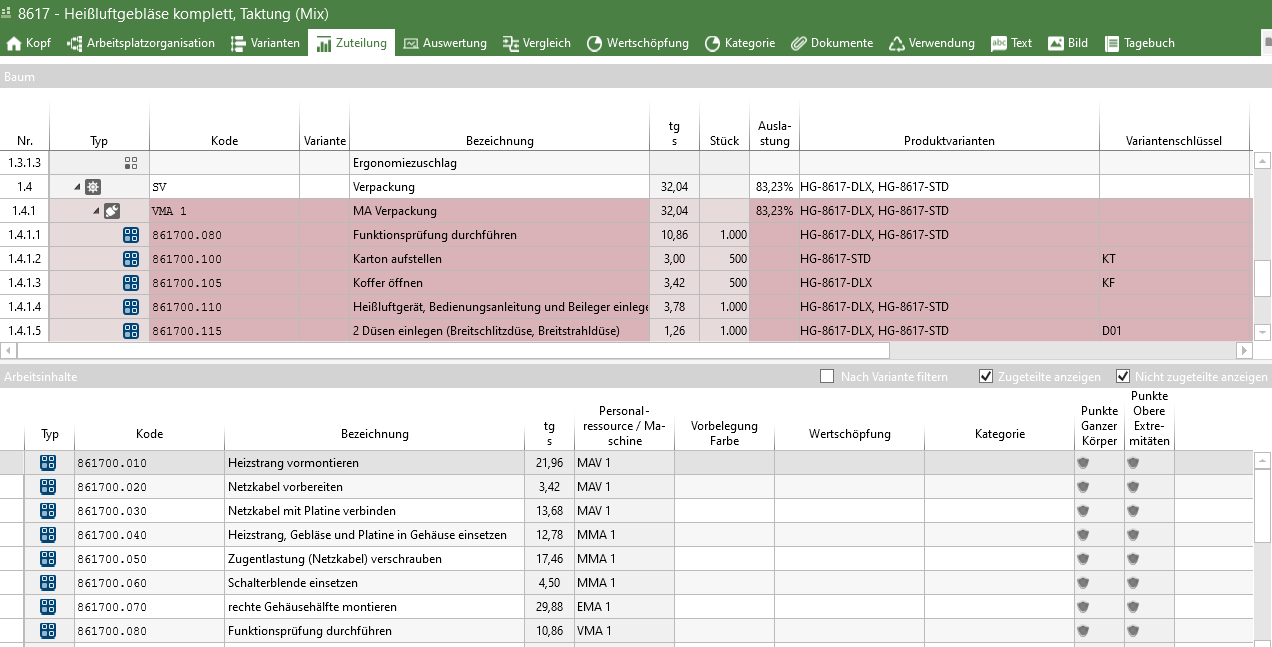 Clicking in the "Product variants" column opens a drop-down menu where you can select the product variant for which an element should be valid. 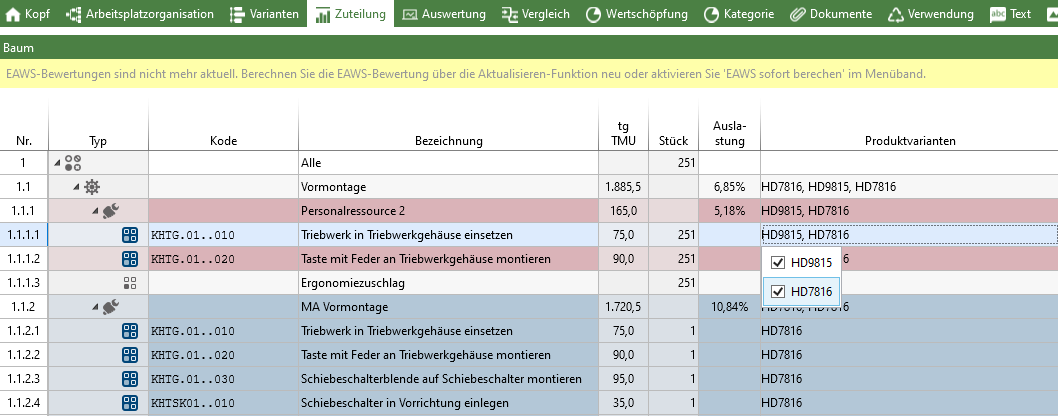 |