If you have a TiCon HWD® or TiCon EAWS®, and a TiCon Takt license, it is possible to balance both HWD® sections and process elements with EAWS® evaluation in the TiCon Takt module. In a balancing, HWD® sections and process elements with EAWS® evaluation may be used. Care must be taken to ensure that per operator only HWD® sections or only process elements with EAWS® are balanced together. The EAWS® evaluation is only possible for operators. No calculation is carried out in the case of machines.
Requirements:
•Activate the option Calculate EAWS evaluation at the element configuration Balancing in the administration
•Activate the Workplace organization Tab at the element configuration in the administration Alternatively, you can define the default values in the administration of the corresponding element configuration, in which case it is not necessary to activate the tab.
•Allow configuration of element usage in the element configuration in the administration for HWD® sections and/or process elements with EAWS® data
Elements are assigned as described in the chapter Assignment of work contents.
Characteristics of balancing with EAWS®
If elements are synchronized in an EAWS® balancing that do not contain EAWS® data, a corresponding message appears in the status bar or at the top of the assignment.

There is a note in the status bar and at the top of the assignment if elements are used that do not contain EAWS® data.
The signs in the chart on the operator or in the tree in the corresponding columns stand for the evaluation "Whole body" and "Upper limbs". Initially, these signs are gray, i.e. the evaluation is not yet up to date and therefore no statement on workplace ergonomics is possible. The tooltips on the signs provide details as to why an evaluation is not yet possible.
Possible messages:
•You have not yet assigned any elements, so that no EAWS® evaluation is possible.
•You have assigned process elements that do not contain EAWS® data, so that no EAWS® evaluation is possible.
•The EAWS® evaluation is not possible due to errors in the EAWS® data: The inserted cycle time is shorter than the duration of all activities.
•The EAWS® evaluation is currently still being calculated...
By clicking on "Refresh" "Assignment – EAWS® evaluation", the EAWS® evaluation is recalculated for all operators.
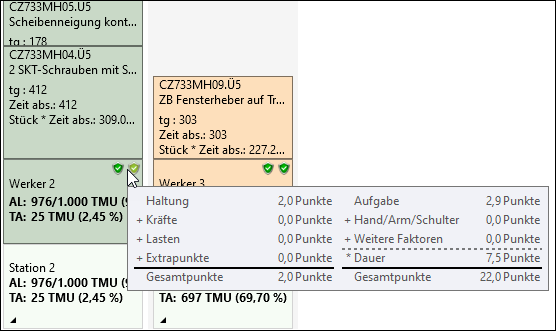
Tooltip in the diagram: left = Whole body, right = Upper extremities
You can activate all relevant columns for the EAWS Evaluation in the assignment tree by pressing the Select columns button in the Assignment ribbon.
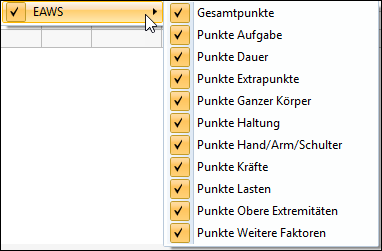
Possible columns for the Ergo evaluation
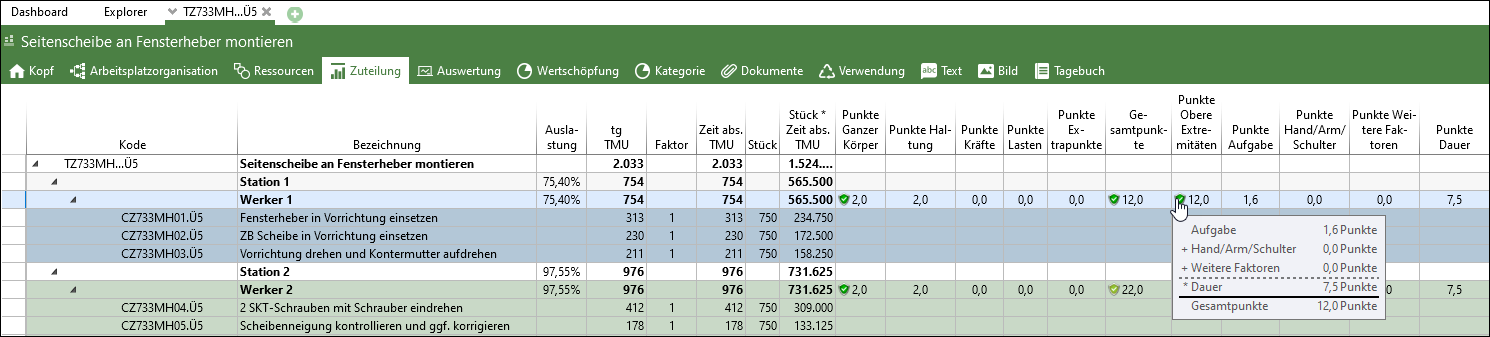
Tree view of the assignment with the columns for the EAWS® evaluation
The ergonomics evaluation for a selected operator can be displayed via the "Ergonomics" button in the "Assignment" ribbon under "View". If the button is active, the ergonomics evaluation for one selected operator is displayed in the work area.
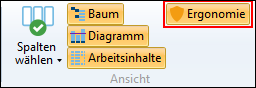
Button Ergonomics
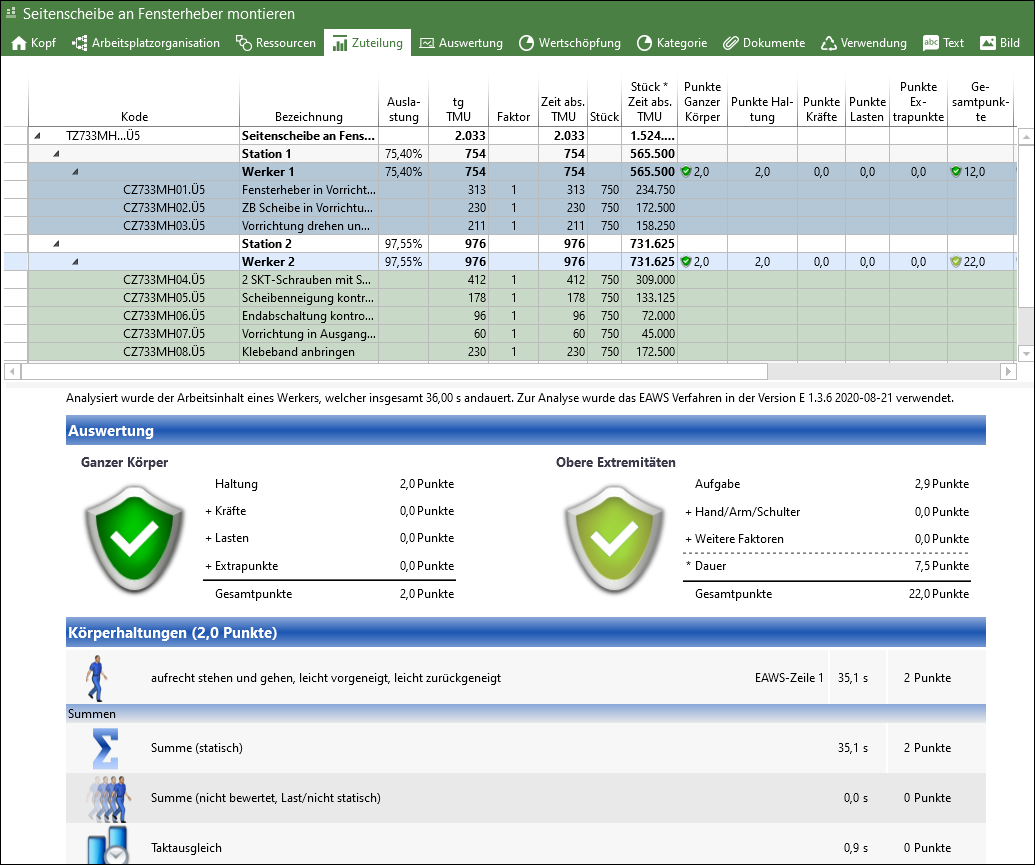
Ergonomics evaluation / Tab assignment
Please note: |
There are always the values assigned to one worker are displayed only. It does not matter whether a process element of the worker is selected or the worker itself. |
Using the "Export" button in the "Assignment" ribbon, the evaluation of a previously selected operator can be exported as an Excel file (corresponding form for EAWS®), image (*.png), or PDF file. These functions are only active if an evaluation is displayed in the "Ergonomics" area.
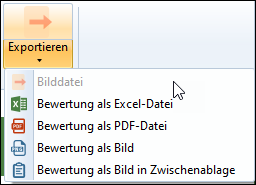
Exporting the evaluation / "Assignment" tab