In TiCon you can use different license models.
In the standalone version, only local licenses are used; in the Multiuser licenses, server licenses are used (e.g. named user licenses or floating licenses). If TiCon is used in multi-user operation under the Microsoft SQL Server database system, the licenses can be administered centrally in the TiCon database. By selecting the "Administrate centrally" option, all license functions of a server installation are available to the administrator. In server installations, it is possible to pre-assign, change, or delete hostname, domain, and/or Windows login ID using the license table, if corresponding changes were made in the company.
Local licenses are valid for the PC on which TiCon is installed. On this computer, each Windows user can work with this TiCon version.
There are separate licenses for all the modules (e.g. Base, Takt) and languages. There can be Read-only licenses or writing licenses. User rights for the module functionalities are attached to the licenses.
Note: |
•Floating licenses are only used for active use, i.e. in general no license is used when the user logs into TiCon4, only when an element is opened is the respective module license used and assigned to the Windows user. After TiCon4 has been closed, the floating license used is released. •If usage rights are granted for modules but no suitable or free license is available, the user is informed with a corresponding message above the status bar.  |
 Licensing and License Activation
The licenses are set in the Administration. 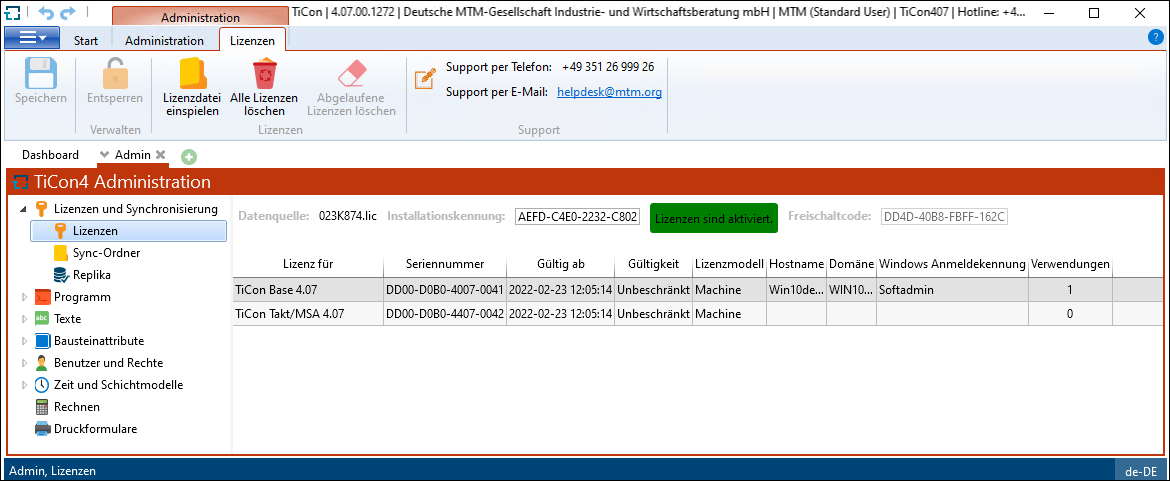 If licenses are already installed, they have to be deleted before importing a new license file using the button Remove all licenses. |
Click the button Insert license file... to choose and import the provided license file. |
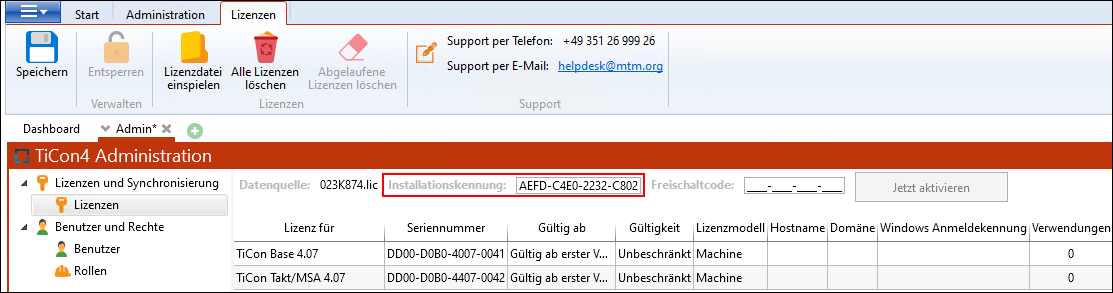 In order to receive the release code for the installation, the automatically generated installation ID and the name of the license file must be submitted to theMTM Support. The license can optionally be activated using web activation. To use this kind of activation, the license file must have been configured by MTM support accordingly.
The license files are checked when the "Activate now" button is pressed. If the licensing was successful, a corresponding message appears. 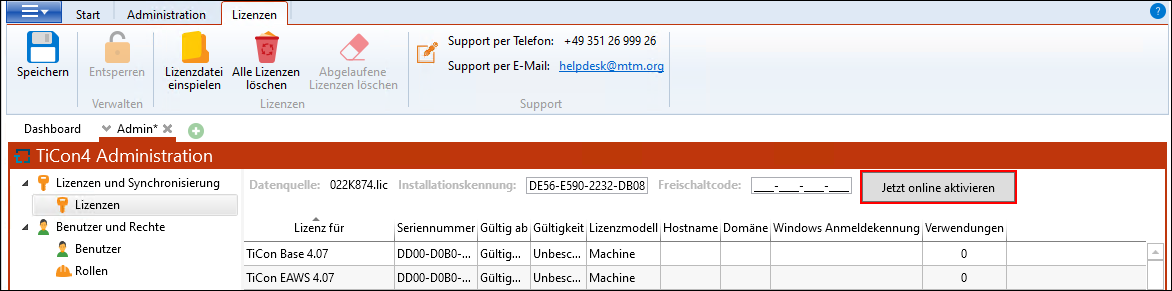 There is no need to contact MTM support for web activation. The licenses are activated online by clicking the "Activate online now" button. 
|
Delete expired licenses or licenses of other TiCon version
If expired licenses or licenses of another TiCon version are contained in the license table, this is indicated by a note above the table. Licenses that have expired or are valid for another TiCon version are additionally displayed in gray font. By clicking on the "Remove expired licenses" button in the "Licenses" ribbon, the table can be cleaned up. 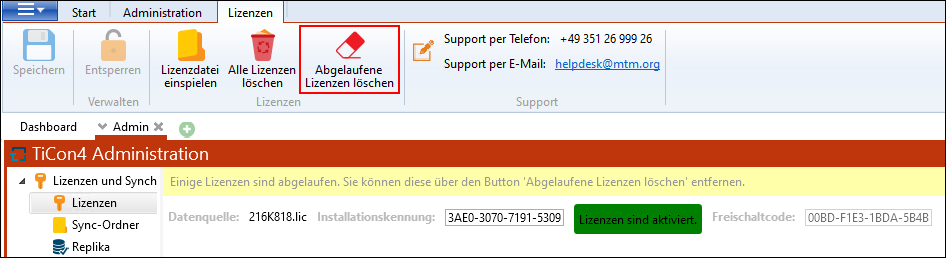 |
Click on the "Update licenses" button to update all licenses. This displays the actual usage status of all licenses in the license list.  |