To make sure TiCon performs at a consistently high level, we recommend following the instructions below:
▪The displayed columns can be shown and hidden in most element structures and in the search via the ribbon ▪We recommend only showing columns that are necessary for the current workflow and hiding all others.  |
 2. Hide graphics in element structure
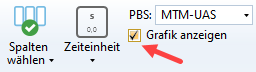
▪A checkbox in the ribbon can be used to show and hide the graphic in element structures ▪We recommend only displaying the graphic if it is necessary for the current workflow 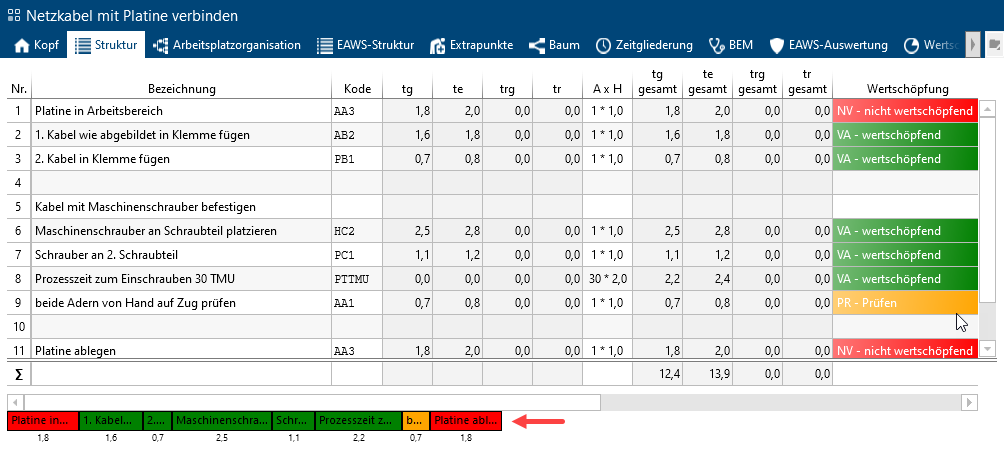 Structure function with graphic shown |
3. Deactivate spell check and autocomplete
▪The "Change options" button in the ribbon can be used to deactivate autocomplete and automatic spell check ▪We recommend only displaying both functions if it is necessary for the current workflow 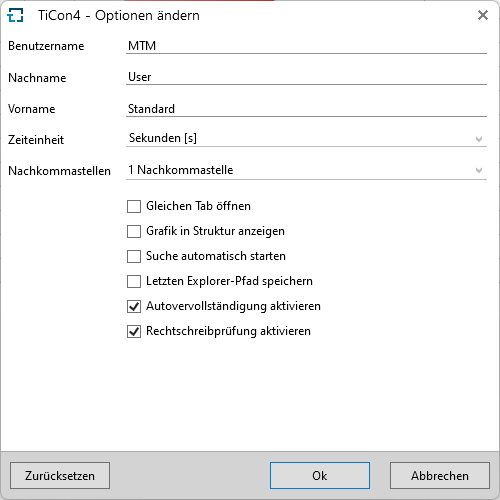 "Change options" dialog |
4. Open folder via dashboard or element structure instead of via Explorer
▪If you want to open the folder where an element is stored, we recommend doing this via the context menu. (Right click) ▪This works both in the dashboard and within the "Structure" tab 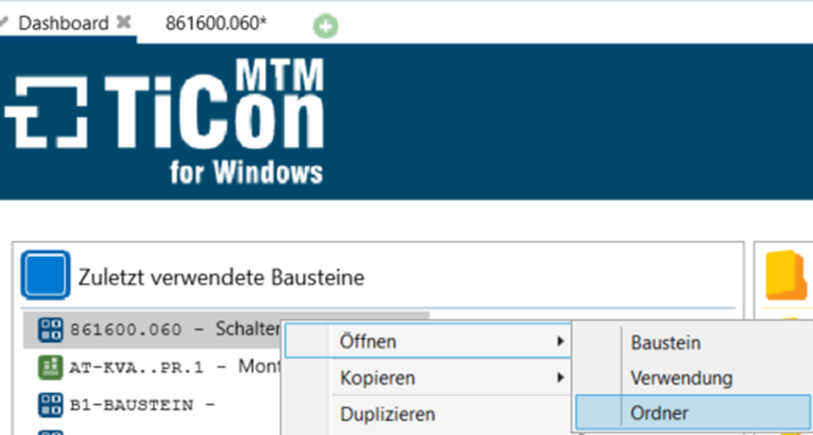 Opening a folder via the context menu in the dashboard 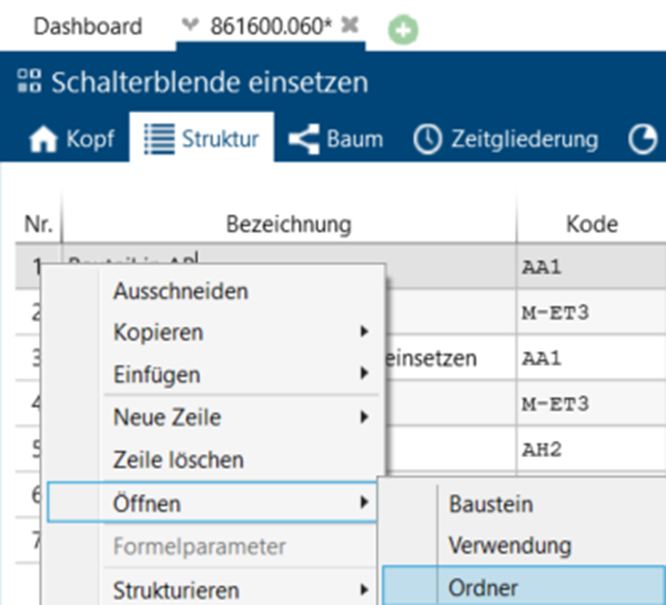 Opening a folder via the context menu in the "Structure" tab |
▪Mass changes, such as renaming, duplication, or deletion of elements, can result in diminished performance ▪We recommend initiating mass changes via TiCon Service ▪The dialog for mass functions can be hidden |
6. Deleting/Renaming/Duplicating with TiCon Service
▪“TiCon Service" is a service that must be installed in addition to the regular TiCon installation ▪Using TiCon Service for mass changes saves resources and time ▪In the event of mass changes, the Service can be used to move the process to another machine via the "Execute locally" checkbox, which saves resources 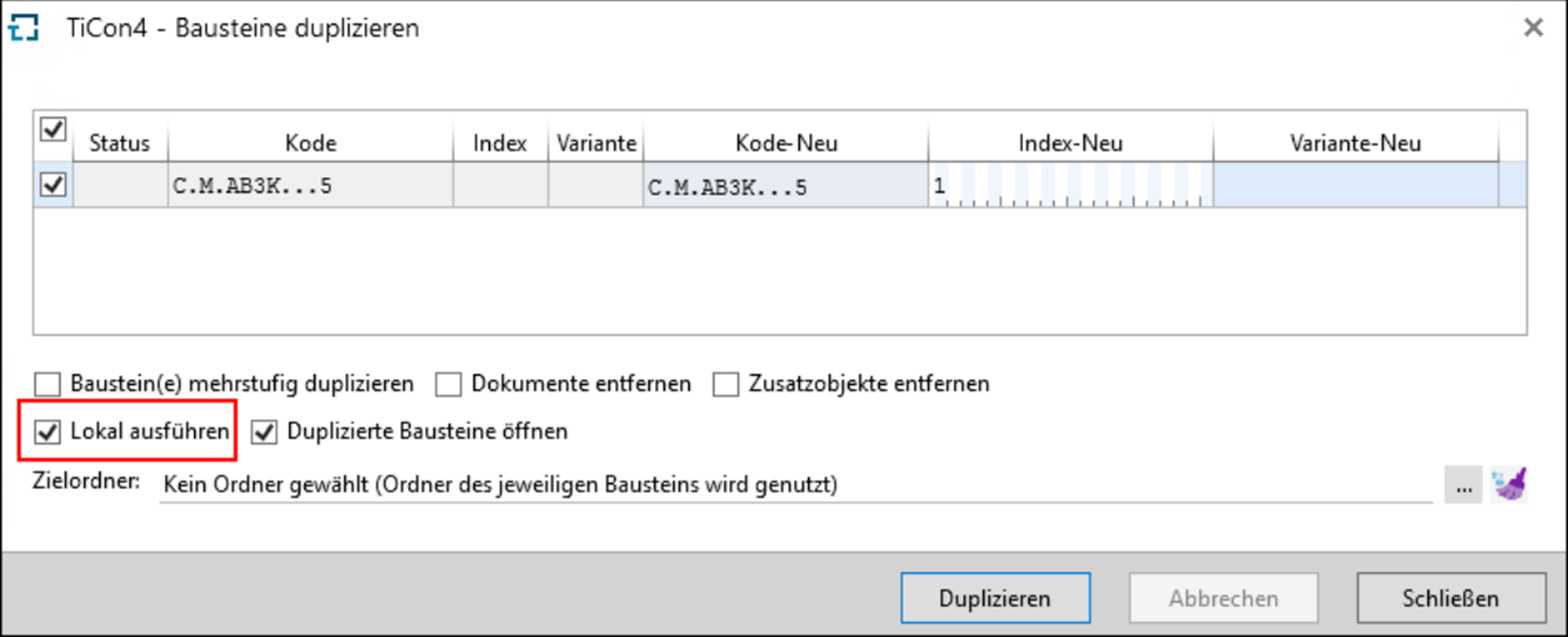 "Execute locally" checkbox in the "Duplicate" dialog |
7. Linking images, videos, and documents
▪In the "Documents" tab, it is possible to link documents, videos, and images ▪To do this, click on the "Attach file" button in the ribbon and select the desired category ▪We recommend linking files instead of storing a direct document copy in the database ▪The files can be linked via a (web) URL or a file system link 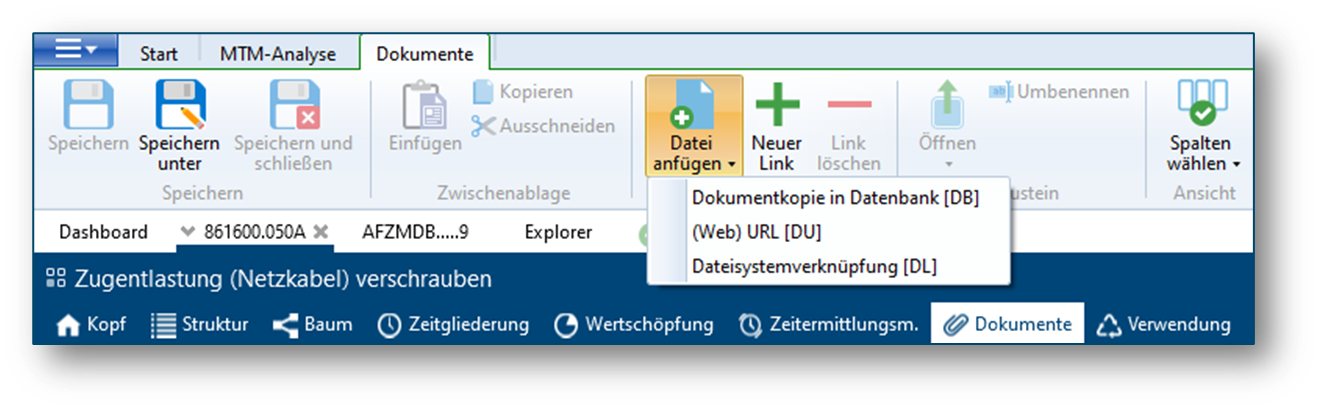 |
▪The "Update" menu item in the ribbon is used to update the data of an element when changes have been made  ▪We recommend only updating data that has actually been changed ▪The following two options are available:
1.Click on the button and deselect the items in the checkboxes that you do NOT want to update
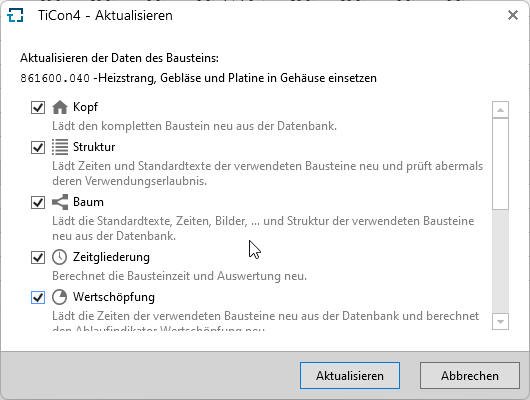 2.Click on the arrow at the bottom of the button and select only the elements of the element that you want to update 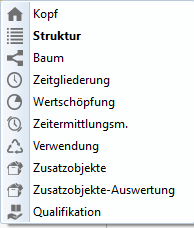
|
▪For displaying variants, the maximum balancing is preferable to mix balancing, as it consumes fewer resources. More about this: Max balancing ▪We recommend only opening one of the available views in the "assignment" tab of a balancing (regardless of the type). (Tree/Chart/Work contents) |
▪The TiCon user interface can be personalized with icons ▪The effects of using icons in the element configuration on performance are relatively high ▪The size of these icons is limited to 16x16 pixels by default ▪We recommend limiting the size of the icons to a maximum of 8 bits or less ▪It is also possible to use a default icon to save resources 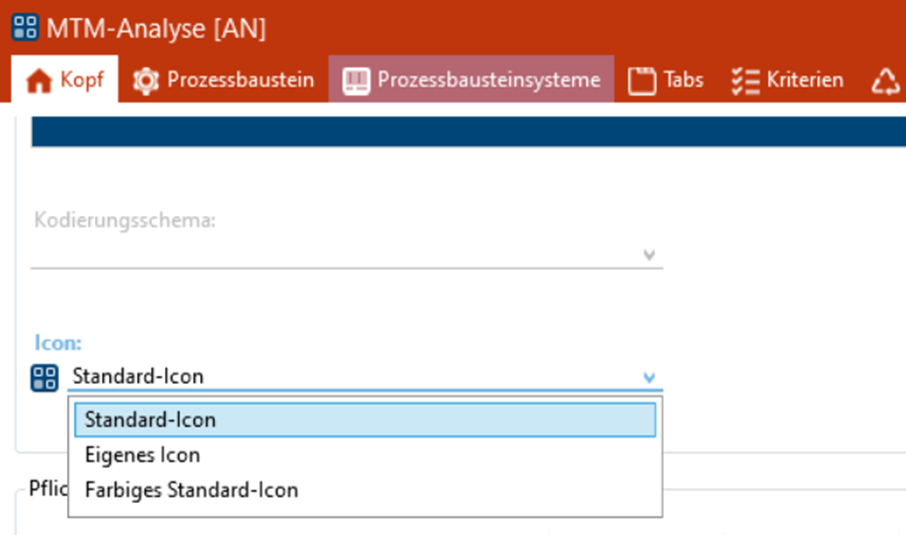 |
▪We recommend keeping the number of structure levels to be output as low as possible in the print options 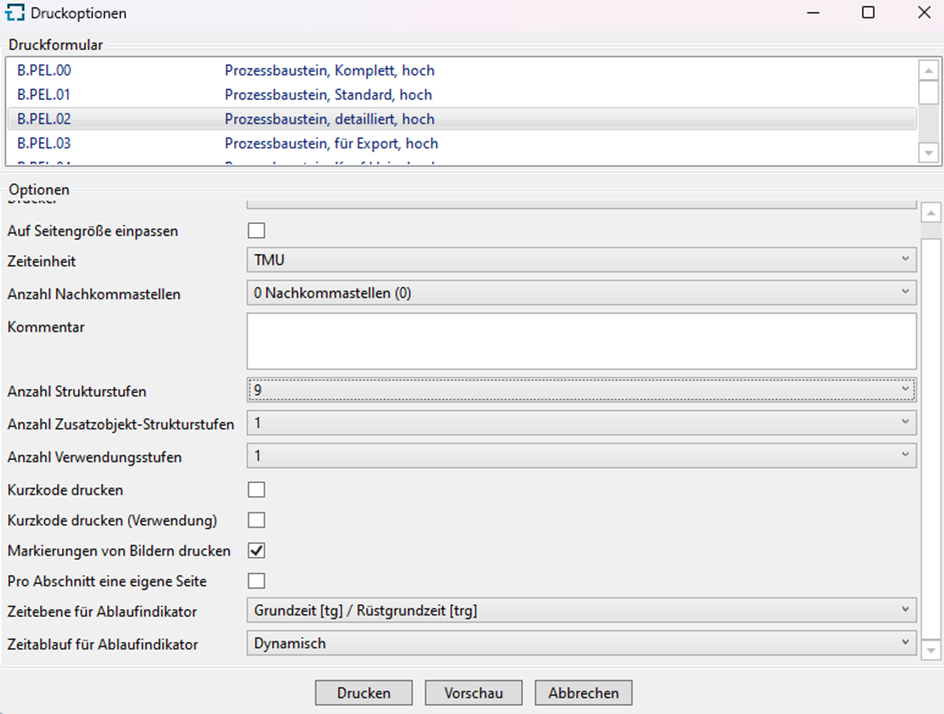 |
▪When exporting elements, it is possible to decide in the "Export" dialog whether element configuration and/or structure levels should also be exported ▪In the case of structure levels, it is possible to select the number of structure levels to include ▪If possible, we recommend exporting with as few structure levels as possible 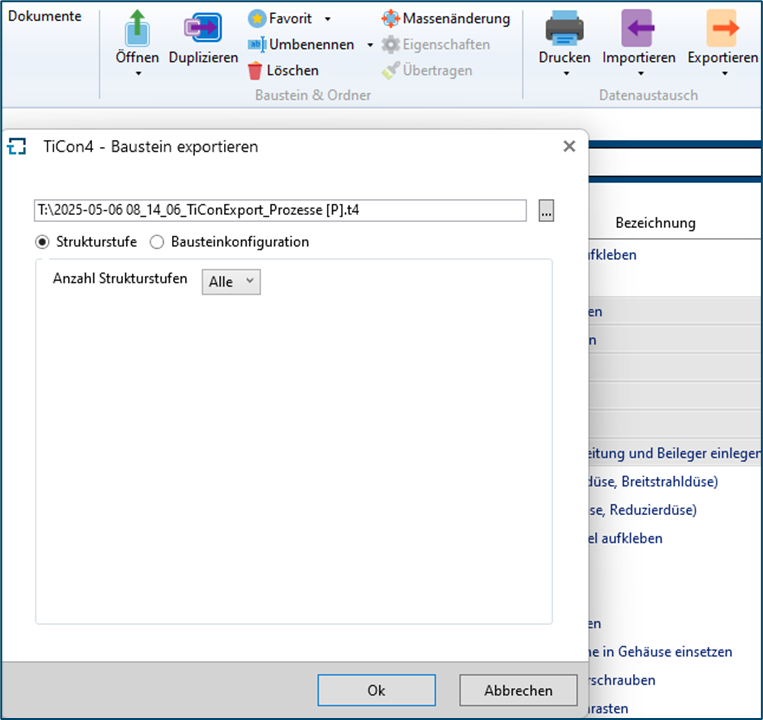 |
Database performance is an important indicator for the performance of TiCon. Measure the database performance ▪Click the "About TiCon4" button in the "Start" menu ▪Click on "Measure performance" in the "Database performance" row Evaluation of the measured values ▪Ideally, the measured value should be between 10 and 20 ms ▪If the value is higher, this can have various causes (e.g. high database load, connection via Wi-Fi) ▪In the event of persistently high loads, we recommend contacting “MTM Software Support" to have a diagnosis carried out |
Take a ping measurement ▪Open the Windows command prompt ▪Ping and enter the name or IP address of the server in the command line ▪Confirm with "Enter" Evaluation of the measured value ▪If the measured ping value is greater than 5, we recommend informing the company's internal IT department and/or contacting “MTM Software Support" to have a diagnosis carried out |