Different print functions:
Function |
Definition |
Print element |
Opens the print dialog and enables the print of the selected elements. |
Print structure |
Opens the print dialog and enables the print of all used sub elements of the selected elements. |
Print element from structure |
Opens the print dialog and enables to print all used elements of the structure of the open element. |
Print list |
Opens the print dialog and enables the print of the current search filter and its hit quantity as list. |
Print selection as a list |
Only available in search: Opens the print dialog and enables the printing of the current search filter and its selected results as a list. |
Export in different export formats (PDF, Excel etc.):
•Select elements in the Explorer and click the button Export / Via print form in the ribbon Explorer.
•The basis of the export is the respectively selected Print form.
•The print options dialog offers different export settings.
•Clicking Export, opens the "Save as" dialog for selecting the target folder and entering the file name.
•If the option Display export result is activated, the generated file is directly opened.
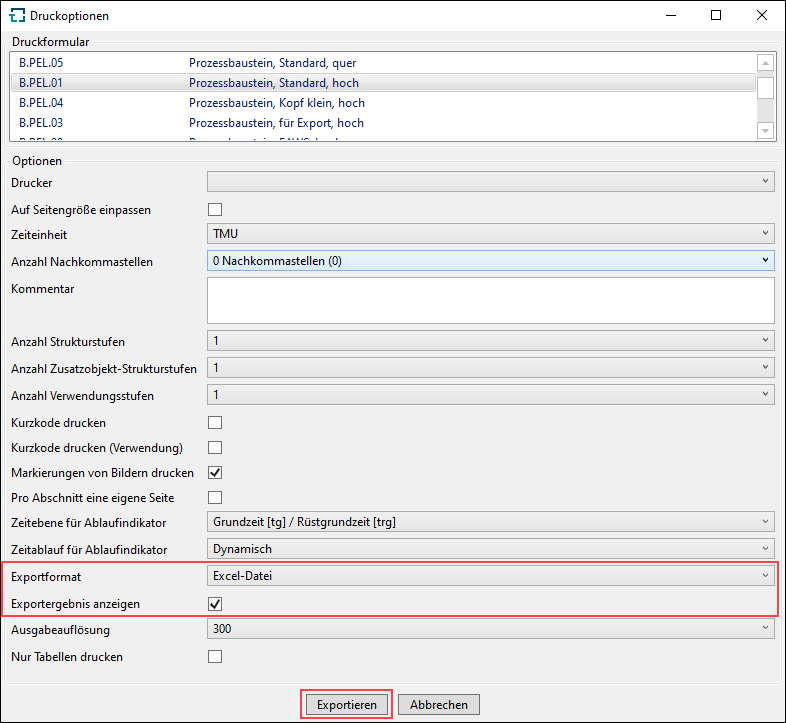
Selection of print form and different print options and export format
Please note: |
If elements from a TiCon4 database are supposed to be used in another TiCon4 database, these elements have to be exported as *.t4 files (see Import / Export). If elements from a TiCon4 database are required by a TiCon3 database, these elements have to be exported as *.t3 files. However, importing *.t3 files is not possible. |
Specific feature when exporting lists:
In order to be able to export lists from Explorer or the search, you have to choose the option "Print list / selection as a list" and use the "Export" button in the print preview. This allows the export to the following formats: PDF, TIFF, TXT, EMF, JPG, and PNG.
If the contents of a list are supposed to be exported to Excel, you have to use copy and paste. For details on copying to Excel, see Copying to an Excel File.
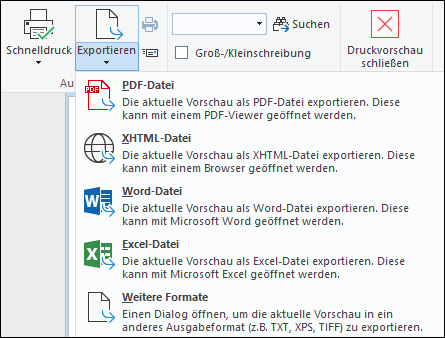
Export via print preview