Error 1: – Certificate error
Error message:
The error message below appears when calling up any function of the API.
A connection was successfully established with the server, but then an error occurred during the login process. (provider: SSL Provider, error: 0 – The certificate chain was issued by an untrusted certification body
Cause:
There is a trust problem between TiCon Rest API (SST) and the database management system (DBMS).
With the default settings, the data exchange between SST and DBMS is encrypted with SSL and the server certificate of the DBMS is checked when the connection is established (checked means whether it is valid, issued to the correct server name, and has not yet expired as well as whether the certificate-issuing body belongs to a trustworthy body).
This setting is recommended from an IT security perspective and makes attacks more difficult.
However, it now appears that the DBMS server certificate was issued by a body that is not trusted by the server on which the SST is running.
Solution:
The recommended solution is to adjust the certificate on the DBMS or adjust the trusted certificate authorities on the SST server.
Alternatively, the security level can be reduced. The next lower level would be to keep the encryption (Encrypt = True) and blindly trust the certificate of the DMBS (TrustServerCertificate = True).
To do this, the setting of the connection string must be adjusted in appsettings.json (e.g. under "c:\inetpub\TiCon4RestAPI"):
"TiCon4Database": "Data Source=<mysource>; Initial Catalog=ticon4; User Id=ticonuser; Password=topsecret; Persist Security Info=True; MultipleActiveResultSets=True; Encrypt=True; TrustServerCertificate=False; App=TiCon4RestAPI",
Ein noch niedrigeres Sicherheitsniveau erreicht man, wenn man d die Verschlüsslung abschaltet (Encrypt = False). In diesem Fall spielt es keine Rolle, ob man dem Server-Zertifikat blind vertraut oder nicht, da ja gar nicht verschlüsselt wird Dazu muss in der appsettings.json (z. B. unter c:\inetpub\TiCon4RestAPI) die Einstellung des Connection-Strings angepasst werden:
"TiCon4Database": "Data Source=<mysource>; Initial Catalog=ticon4; User Id=ticonuser; Password=topsecret; Persist Security Info=True; MultipleActiveResultSets=True; Encrypt=False; TrustServerCertificate=False; App=TiCon4RestAPI",
Error 2: – Parse error in web.config
Error message:
When calling up the documentation page, e.g. "http://localhost:443", an IIS error message appears stating that the web.config file cannot be parsed.
Cause:
The web.config file contains configuration settings for ASP.NET. If ASP.NET is not installed, the file cannot be processed by the IIS.
Solution:
Install the current version of the " ASP.NET Core Hosting Bundle" for version 6. Step 3 may have been forgotten under "Installation IIS" on page 2. Repeat again to be on the safe side.
Error 3 – JSON format exception
Cause:
In Windows event log:
--->" System.FormatException: Could not parse the JSON file."
Cause:
The configuration file is not written correctly, e.g. quotation marks have been forgotten or backslashes (\) are not masked (= doubled).
Solution:
Visit the website: https://www.online-json.com/json-validator
And upload the JSON file here. Check where the error is and rectify (e.g. double backslashes (\))
Error 4 – Database connection not possible
Error message:
When checking the interface version via " https://{{yourhost}}/ticon-web/services/management/version", an error message is displayed for dbVersion, e.g. "Error during login for the user \"MYDOMAIN\\MYSERVER1$\".
Cause:
The user under whom the interface is running cannot log in to the database server for the database.
Solution:
There are three possibilities:
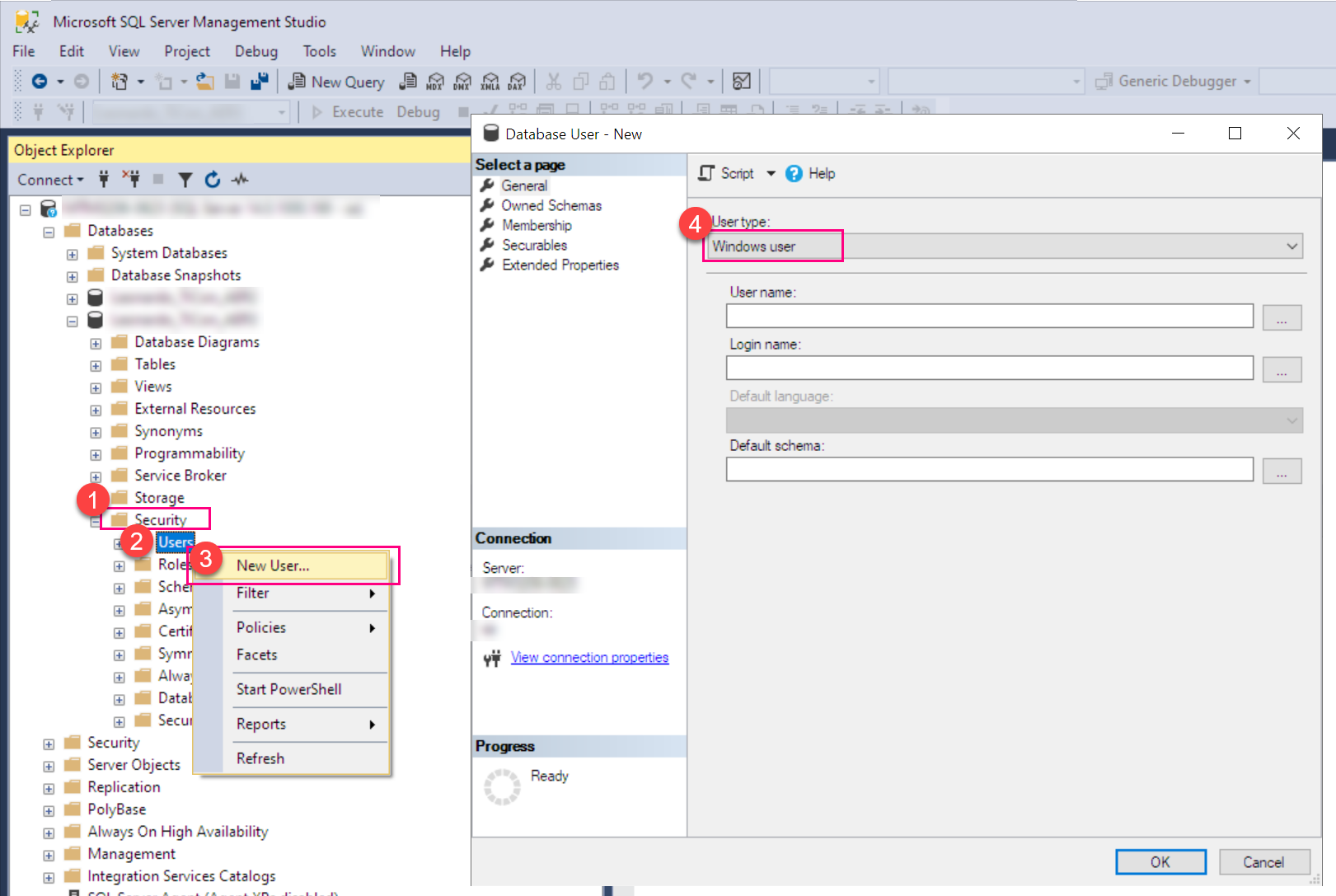
1.Authorize the user under whom the interface is running. To do this, the user from the error message must be added to the DBMS under "Security".
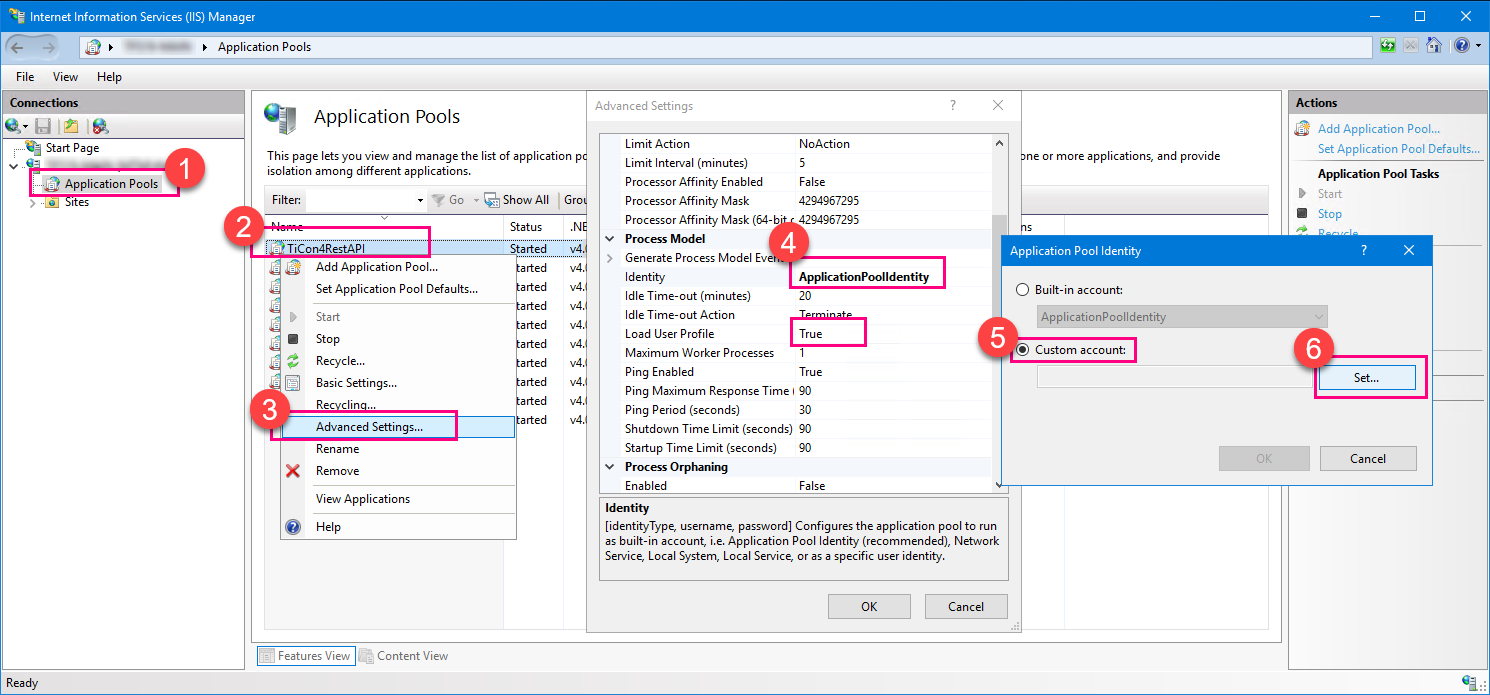
2.Run the interface under a different user account. This can be set in the Internet Information Services (IIS) Manager under "Application pools".
3.Do not establish the database connection via "Integrated Security"; use SQL authentication instead. This setting is made under "appsettings.json", for example, as follows:
"ConnectionStrings": {
"TiCon4Database": "Data Source=myserver; Initial Catalog=ticon407; User Id=mydbuser; Password=mypassword; MultipleActiveResultSets=True; App=TiCon4RestAPI",
"TiCon4DatabaseProvider": "Microsoft.Data.SqlClient"
},