|
<< Click to display table of contents >> Navigation: TiCon EAWS > EAWS®- Template |
Definition: |
|---|
An EAWS® template is an EAWS®-specific data card. |
It is used to record frequently recurring ergonomic issues on Data cards so they can later be reused in analyses. This accelerates and standardizes the creation of EAWS®-analyses.
The content of an EAWS template can be entered or modified in the Admin section under Element Configuration.
Please note: |
|---|
With the release of TiCon version 4.10, the rows for leg position, trunk flexion, and arm position were removed from EAWS® templates. The data from these rows is summarized in the Body Posture row. Existing full-body forces are written to the comment column of the original template in TiCon Version 4.10 to prevent data loss. |
Working with an EAWS template follows the same principles as working with a regular data card.
Please note: |
|---|
Because they function as data cards, EAWS® templates cannot be copied, duplicated, or deleted. |

Working with an EAWS®-Template
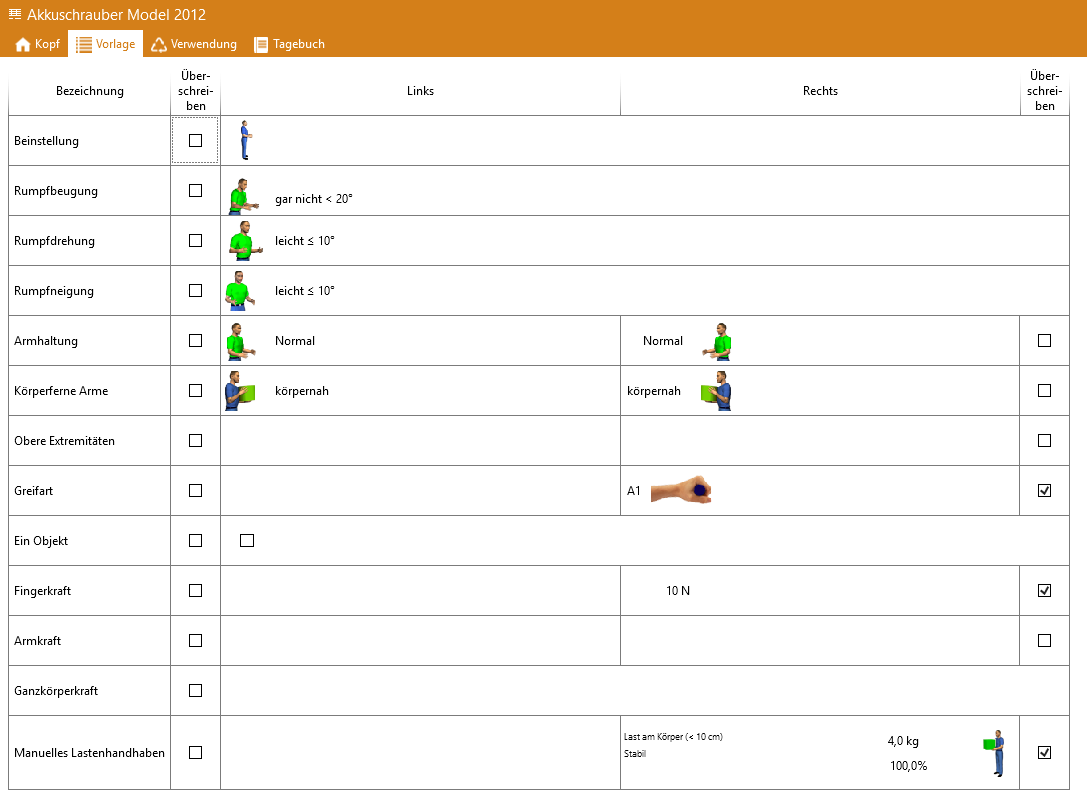
The template is defined in the open element on the Template tab in the form of a table.
Column |
Function |
|---|---|
Description |
The text is fix and cannot be modified. |
Apply (1st column) |
Determines whether the data for the left-hand side (or side-independent) is transferred when the data card is used |
Left |
Contains the data as it is filled in by the data card. Data that applies regardless of the side, such as trunk flexion, can only be set in the Left column. |
Apply (2nd column) |
Specifies whether the data is transferred to the right-hand side when the data card is used. |
Right |
Contains the data for the right half of the body, as filles in by the data card. |
Overwrite |
If data is inserted from the table into an EAWS row, only the data marked with Overwrite in the table is inserted. If data is inserted into the table from an EAWS row, all data from the EAWS row is copied and all Overwrite checkboxes are activated. |
Using EAWS templates on data cards
EAWS template elements can be used on data cards. This means that the coding of an EAWS template can be entered (cell type = element code) or an EAWS template element can be linked (cell type = element).
For use as an element cell type, the folder usage must be configured accordingly.
If "Time" is selected as the label, nothing (empty) is displayed as the label, as EAWS templates have no time.
Using EAWS templates for data entry
When using a data card with EAWS templates, data can be transferred to a detailed analysis (in the "Structure" tab) or a process element (in the "EAWS analysis" tab)
The position selected in the data card "before/after/in current line" or "Last line" is taken into account.
In "before/after current row" and "last row" mode, a new EAWS analysis row is created and initialized with the default values, whereby the influencing factors marked as to be overwritten are filled in with the values defined for them in the template.
In addition to clicking the data card, it is also possible to drag and drop (before/after or onto an EAWS row) from the data card.
As an alternative to using a data card, EAWS templates can also be used from Explorer via drag and drop.
Please note: |
|---|
Template elements can be exported and imported. |